
Local Network Access
www.3skey.com wants to access other apps and services on this device
During the login to the 3SKey portal you see the below prompt:
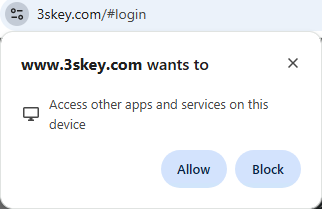
This prompt shows because the 3SKey portal checks for the presence of Web Connect on your computer before running it. Recent browsers introduced Local Network Access checks and warn you about this access.
You must click on Allow to be able to use Web Connect.
Notes :
- On the first login, Web Connect will be blocked and the 3SKey portal will try to use SConnect. If SConnect is not already installed, you will see a message prompting you to install it. You do not need to install SConnect. You can click Allow on the screen above, and then refresh the page to use Web Connect.
- You can paste the following URLs in the address bar to access the browser settings. You can add the site https://www.3skey.com:443 in the list of allowed sites before your first connection. Check these parameters as well if you clicked Block or do not see the invite:
-
Edge:
- Version 146 and higher: edge://settings/privacy/sitePermissions/allPermissions/loopbackNetwork
- Version 143-145: edge://settings/privacy/sitePermissions/allPermissions/localNetworkAccess
-
Chrome:
- Version 145 and higher: chrome://settings/content/loopbackNetwork
- Version 142-144: chrome://settings/content/localNetworkAccess
- Firefox version 149 and higher: you cannot add a site in advance using the Firefox settings but you can check if a site was blocked. Refer to the instructions on the Mozilla Firefox website.
- You can ask your IT support to configure the following policy for https://www.3skey.com:443 so that you don't have to authorize the 3SKey portal in the future:
- Edge:
- Version 146 and higher: LoopbackNetworkAllowedForUrls
- Version 143-145: LocalNetworkAccessAllowedForUrls
- Chrome:
- Version 145 and higher: LoopbackNetworkAllowedForUrls
- Version 142-144: LocalNetworkAccessAllowedForUrls
- Firefox version 149 and higher: Refer to the instructions on the Mozilla Firefox website.
More information (external sites):